BCImat
BCImat: a Matlab-based framework for Intracortical Brain-Computer Interfaces and their simulation with an artificial spiking neural network - Published in JOSS (2022)
Science Score: 93.0%
This score indicates how likely this project is to be science-related based on various indicators:
-
○CITATION.cff file
-
✓codemeta.json file
Found codemeta.json file -
✓.zenodo.json file
Found .zenodo.json file -
✓DOI references
Found 16 DOI reference(s) in README and JOSS metadata -
✓Academic publication links
Links to: joss.theoj.org -
○Committers with academic emails
-
○Institutional organization owner
-
✓JOSS paper metadata
Published in Journal of Open Source Software
Scientific Fields
Repository
A Matlab GUI based program implementinhg a Brain-Computer Interface (BCI) decoder interpreting movement intentions from intracortical neural activity and converting them into cursor movements on a computer screen
Basic Info
Statistics
- Stars: 6
- Watchers: 2
- Forks: 1
- Open Issues: 0
- Releases: 1
Metadata Files
README.md
BCImat: a Matlab-based framework for Intracortical Brain-Computer Interfaces and their simulation with an artificial spiking neural network
Content of the package
This package contains two main components:
- A Matlab Brain-Computer Interface (BCI) framework (BCImat).
- A c++ project (TrackM) implementing a task controller for testing the Matlab BCI framework in a closed-loop fashion.
Purpose of the BCI framework (BCIMat)
BCImat is a Graphical User Interface (GUI)-based program developed in Matlab. It serves as a Brain-Computer Interface (BCI) framework designed to interpret movement intentions from intracortical neural activity and translate them into cursor movements. BCImat supports two primary modes of operation: 1. Simulation mode * BCImat provides a simulated set of cosine-tuned neurons, as described by Georgopoulos et al. in 1982. This mode is intended for testing purposes to ensure the functionality of the BCI framework before using it under real brain control. 2. Application mode * In application mode, BCImat interfaces with real neural data obtained from a Blackrock 128-channel recording system (manufactured by Blackrock Microsystems, Salt Lake City, USA). This connection is established using the cbmex code, enabling real intracortical control.
Dependencies * The current version of BCImat requires the "Statistics and Machine Learning Toolbox." However, in future releases, efforts will be made to eliminate dependencies on this toolbox.
Compatibility * BCImat was primarily developed and tested using Matlab 2016a with the Statistics and Machine Learning Toolbox version 10.2. It has also been successfully tested with Matlab version 2018b and the Statistics and Machine Learning Toolbox version 11.4.
Purpose of the task controller (TrackM)
TrackM is a sample software application written in C++, serving as a standard task controller designed for a reaching task. This task controller enables users to perform sequential reaches to a target represented as a green circle, starting from a central fixation circle in gray. While this component isn't the primary focus of the project, it plays a crucial role in enabling users to test the full Brain-Computer Interface (BCI) closed-loop functionalities in conjunction with the BCI Matlab framework. TrackM's interface is not limited to C++; it can be implemented in any programming language that utilizes Virtual-Reality Peripheral Network (VRPN) methods to send and receive data with the BCImat interface. This interoperability opens up possibilities for diverse development environments while ensuring seamless communication with the BCImat framework.
Components
TrackM consists of the following components:
- main.cpp: The main program file responsible for orchestrating the task controller's functionality.
- vrpnserverclass: A class implementation used to establish a VRPN server method. This method facilitates * data streaming via network communication. Dependencies: TrackM relies on external libraries, including VRPN (for data streaming) and SFML (for graphical displays of target objects).
Build the Task Controller Project TrackM
The TrackM folder contains the source code and a CMakeLists.txt file to build the project on different OS architectures. To successfully build TrackM, you'll need to have the following libraries installed on your computer:
- SFML (Simple and Fast Multimedia Library) - Download SFML
- VRPN (Virtual Reality Peripheral Network) - VRPN GitHub Repository
Installation Prerequisites
Before proceeding, make sure you have SFML and VRPN installed. After installing these libraries, follow the steps below to generate the build environment using CMake:
Windows
On Windows, you will need to specify the paths to the include and library folders of SFML and VRPN in the CMakeLists.txt file. To do this, locate the following lines in the CMakeLists.txt file and replace the placeholders with the full paths to your libraries:
cmake
SET(SFML_INCLUDE_PATH <change to the full path of your SFML include directory>)
SET(VRPN_INCLUDE_PATH <change to the full path of your VRPN include directory>)
SET(SFML_LIBRARY_PATH <change to the full path of your SFML lib directory>)
SET(VRPN_LIBRARY_PATH <change to the full path containing vrpn.lib>)
SET(VRPN_QUAT_LIBRARY_PATH <change to the full path containing quat.lib>)
SET(SFML_DLL_PATH <change to SFML folder containing DLLs, they should be in sfml-install-path/bin>)
Linux
On Linux, you generally don't need to specify custom library paths unless you've installed the libraries in non-standard locations.
macOS
macOS was not extensively tested, but the CMakeLists.txt file contains specific instructions for it. If you encounter issues, you may need to specify the include and library folders for SFML and VRPN on macOS.
Library Versions
Please note that the testing was performed with VRPN version 7.33 and SFML version 2.5.1. Ensure that you have these specific versions installed for compatibility.
These instructions should help you set up and build the TrackM project. If you have any questions or encounter issues, refer to the respective library's documentation for installation guidance.
VRPN Matlab Client and Server for BCImat
The BCImat framework is a Matlab program that utilizes Matlab executable (mex) versions of the VRPN client and server applications to exchange information with the task controller. We offer precompiled versions of the vrpn_server.cpp and vrpn_client.cpp specifically for 64-bit Matlab on both macOS and Windows.
Precompiled Versions
If the precompiled versions work for your setup, you can use them directly. They are available in this repository.
Compiling from Source
In case the precompiled versions do not work for your configuration, you can compile the vrpn_server.cpp and vrpn_client.cpp files located in the ./BCI-mat/mex folder using the VRPN library (vrpn.lib). To compile these files, refer to the mexVrpnServerAndClient.m example provided, which demonstrates how to do it on both Windows and macOS.
Please note the following important considerations:
For a 64-bit Matlab version, a 64-bit version of
vrpn.libneeds to be built.In Windows, to successfully obtain the Matlab executable of the VRPN server and client, the
vrpn.libneeds to be built with the Runtime library set to Multi-threaded DLL (/MD).
These steps should help you integrate the VRPN Matlab client and server with BCImat for your BCI experiments.
Running the Full BCI Loop (TrackM + BCImat)
- Edit the Configuration File:
- Open the provided configuration file.
- Enter the following information:
- Name for the Tracker (mouse pointer in this case) implemented in the task controller (TrackM) followed by
@<server_address>. - Name for the Tracker (output of the BCI decoder) implemented in the BCI server followed by
@<client_address>. These addresses specify the addresses of the computers where the task controller and the BCImat framework run. - Define a name for a port to avoid conflicts when the task controller and BCI framework run on the same computer. You can leave the provided entry
<6666>unchanged. - Specify the number of dots per inch for the specific screen resolution for pixel-to-mm conversions (not critical).
- Name for the Tracker (mouse pointer in this case) implemented in the task controller (TrackM) followed by
An example configuration file should look like this (when TrackM and BCImat run on the same computer):
```plaintext IPaddressserver = TrackerTC@127.0.0.1 IPaddressclient = TrackerBCI@127.0.0.1 port = 6666 dpi = 108.79
Run the Task Controller Program (TrackM):
- Execute the Task Controller program, TrackM.
Run BCImat (BCI_loop.m):
- Run the
BCI_loop.mfunction inside BCImat with the following arguments (add also subfolders of BCImat to Matlab path):
- Run the
- For the simulation mode: ```matlab BCILoop(isBrain, neurons, BCIupdatetime, delay, serveraddress, client_address, port)
practically it will look like that:
matlab
BCI_Loop(false,60,0.05,0,'TrackerBCI@172.17.6.10','TrackerTC@172.17.6.10',6666)
The simulated set of spikes is generated in a Matlab class according to a Poisson distribution the rate of which is dictated by actual mouse movement performed in the c++ task interface. For each neuron, a random modulation depth, a baseline firing rate, and a preferred direction are randomly chosen. During real movements, the rate is determined by the baseline firing rate summed to the modulation depth scaled by the cosine of the angle between the actual movement direction and the preferred direction of the neuron.
- And with the following arguments in case of application mode:
matlab
BCI_Loop(true,60,0.05,0,'TrackerBCI@127.0.0.1','TrackerTC@127.0.0.1',6666)
Note that the server address corresponds to the client address on the task controller side while the opposite is true from the task controller side. Additionally, the server and client addresses contain the names of the trackers that are named in the example TrackerBCI and TrackerTC preceding the IP addresses.
Also, note that the client address has a specified port that should be assigned on the task controller side since the same port cannot be used by two different servers with the same IP. Here, the Matlab server uses the default port so it is not necessary to specify it independently.
Blackrock Recording System (Optional)
If you are using a Blackrock recording system, you will need the cbmex code for streaming spikes from Blackrock hardware. The cbmex code is available upon installation of the Cerebus Central Suite, which can be downloaded from here
Test Procedure (Simulation Mode)
In the simulation mode of the BCI system, users can perform decoder calibration and control cursor positions for tasks. Follow the steps below to utilize this mode effectively:
Perform Reaches to Targets:
- Reach the visual targets in the TrackM program by moving the cursor with the mouse for the decoder calibration phase.
Calibrate the Decoder:
- Once the decoder is calibrated, it can be used to control cursor positions and perform the task (decoding phase). In this phase, mouse movements are used to trigger neuronal responses according to their preferred directions while the decoder converts this activity into movements.
Start Reaches from the Center:
- The task is a center-out reach task, so movements are required to always start at the center of the workspace. To initiate reaches to a new target, point the mouse to the gray target at the center of the workspace. This ensures that at the beginning of the reach, the mouse pointer and the cursor are maximally co-localized.
Decoder Setup:
- To set up the decoder, follow these steps:
- Perform several (e.g., 10) reaches to the targets.
- Press the "Update Regression" button to open the single unit GUI. The intensity of the color represents the tuning strength.
- Select several units for decoding (e.g., 30-40 for good performance) by clicking on the colored square of the GUI and updating with the "Update Regression" button to update visualization.
- After collecting enough samples by continuously reaching the target and updating by pressing the "Update Regression" Button (samples are shown on the right table, 150-200 for good performance).
- To set up the decoder, follow these steps:
Start the Decoder:
- Press the "Switch BCI" button to start the decoder. In this condition, movements are controlled by neurons and should follow the mouse pointer in the simulation mode. The quality of the calibration depends on the number of units and the number of samples.
Acquiring Targets:
- To successfully acquire a target, move the mouse pointer inside the gray target to start a new reach. At this point, a green cursor will appear. Try to move the green cursor to the target by adjusting it with mouse movements.
Figure 1: Graphical User Interface for BCI Functionalities
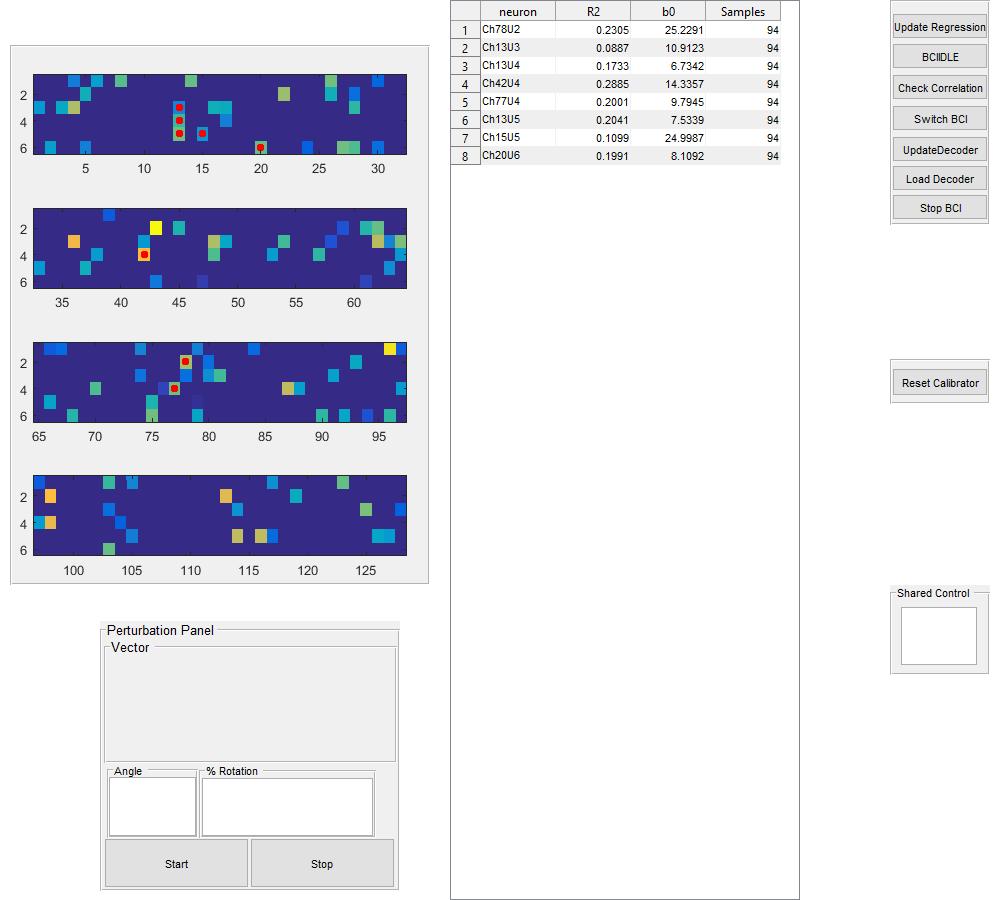
The graphical user interface (GUI) depicted in Figure 1 serves as a tool to harness various BCI (Brain-Computer Interface) functionalities. The layout on the left side of the GUI displays all recorded units, organized according to our experimental settings.
- Channel Organization: The identity of each channel is arranged in columns, and each row represents a different unit (spike) for that channel.
- Electrode Arrays: Since we simultaneously recorded from four electrode arrays, each containing 32 channels (a total of 128 recording sites), we visualize each array separately for clarity.
- Unit Data: For each electrode array, the data is divided into six rows, as our recording system streams a maximum of six units after online sorting.
In the middle column of the GUI: - Selected Unit Information: The name of the selected unit is displayed, along with its tuning properties calculated during specific calibration intervals (Samples) of the decoder. - R2 Value: The "R2" value represents the explained variance when fitting a cosine tuning model to the firing rate of each individual cell. This value also determines the color-coding of the left column in the GUI, with strongly tuned cells identified by warmer colors. - Baseline Firing Rate: The "bo" value represents the estimated baseline firing rate of each cell. - Sample Count: "Samples" indicates the valid number of samples acquired, typically collected at intervals defined by "BCIupdatetime" during valid trials.
The functionality of the buttons located in the right column and at the bottom-left corner of the GUI is explained extensively in the "Matlab Graphical User Interface Functionalities" paragraph. These buttons determine the behavior of the BCI system.
Matlab Graphical User Interface Functionalities
The program utilizes callback functions associated with button presses to interact with the task. The graphical user interface (GUI) functionalities include:
Single Unit GUI (left column): Click on single units to include them in the decoder. This panel appears after pressing the "Update Regression" button for the first time. Selecting units with warmer colors (higher R2) enhances decoding performance.
Update Regression: Press this button to update the decoder's calibration after performing movements. It should be pressed every time a substantial amount of samples is collected. It can be used during calibration to control which units contribute to better tuning (higher R2) or during BCI online mode to improve the calibration. The online calibration mode assumes that the movement always points at the target (Gilja et al. 2012). Calibrations performed with real movements and during closed-loop are kept separate, allowing data retrieval when switching between calibration modalities.
BCIIDLE: This button allows evaluating decoder performance without closing the BCI loop (open-loop). It internally stores real speeds and decoded speeds.
Check Correlation: Intended for use in BCIIDLE mode, this button estimates the Pearson correlation coefficient between decoded speeds and real speeds. It is primarily used in application mode to ensure decent (offline) performance before allowing users to control the decoder.
Switch BCI: After successful calibration, press this button to switch to closed-loop control. It activates the BCI closed-loop mode. Achieving decent performance requires acquiring a sufficient number of units (30-40) and samples (200-300). In offline mode, the green cursor should be reliably controlled with the mouse pointer.
Update Decoder: Use this button after recalibration in closed-loop mode with "Updated Regression." It is important for real applications, not in simulation mode.
Load Decoder: This button loads a previously calibrated decoder. Note that if used across different experimental sessions, the same number of units should be maintained. It is useful for restoring previous decoders within the same session and potentially for using the same decoder across multiple days.
Stop BCI: Press this button to stop the program loop. If this operation is unsuccessful, restarting BCImat requires manually stopping the VRPN server. In the Matlab shell, execute:
vrpn_server('stop_server').Reset Calibrator: Use this button to reset the calibration if an issue occurs during calibration. It initiates the recollection of speed and neural samples.
Shared Control: This feature allows the cursor control to be shared between the computer directly pointing at the target and the neurons. Specify a number between 0-1, where 1 represents full computer control. This feature is useful during subject training phases and for recalibrating the decoder during closed-loop control. The concept is to introduce a high level of computer control during real experiments to maintain high performance. As the subject becomes proficient, the computer's control can be diminished.
Perturbation Panel: This panel enables the rotation of the preferred direction of a subset of units. Specify the angle of rotation and the percentage of random units that will be rotated, then start the perturbation. Rotating the preferred direction of some units during closed-loop control causes the direction of movement to deviate from the intended movement directions. This panel is intended for introducing visuo-motor rotations of the cursors, useful for motor learning studies.
Other Contents of the Package
Inside BCI_classes Folder:
SimNeurons2Dvelocity.m
- This class is used within BCI_loop.m to generate firing rates for artificial neurons based on a Poisson distribution.
- During each small movement (e.g., a 50 ms timestamp), the mean firing rate for each Poisson neuron is determined by:
- Baseline firing rate
- Cosine of the actual moving direction and the neuron's preferred direction, multiplied by the modulation depth.
- Each neuron's preferred direction is determined using a circular uniform distribution.
- The class currently uses a hardcoded modulation depth within the physiological range of 4-18 Hz and a baseline firing rate within the range of 4-20. Future releases of this class may include the option to specify these ranges.
Task_parser.m
- This simple class is used to handle messages received from the task controller.
- It is important for BCImat to have information about the state of the task in order to adapt its behavior accordingly.
- For example, it may be useful to collect samples of firing rates and positional samples only when users are engaged in the motor task.
- In this case, values for calibration are stored online during the last stage of the task (stage 3).
Kalmancalibratorclass.m
- This class is used to internally store samples for calibrating a BCI decoder based on the paper by Wu et al. (2006).
Kalmandecoderclass.m
- This class utilizes the calibration matrix generated by the Kalmancalibratorclass to generate position estimations online.
- Ideally, both this class and the calibrator class could be replaced with any other decoder type implementing a similar behavior.
Inside Test_connections Folder:
TestVRPNConnection.m
- This script is used to test whether a VRPN client connection can be established without implementing the full BCI closed-loop.
- The function should be called with the following arguments:
test_VRPN_connection(server_address, ismessage).
server_addressrequires the name of the server where the task controller runs, whileismessagespecifies whether to read a message from the task controller (ismessage = 1) or positional data from the task controller (ismessage = 0).- To check if you can retrieve messages, use this command:
TestVRPNConnection('TrackerTC@127.0.0.1:6666', 0).
- To read positional data, use this command:
TestVRPNConnection('TrackerTC@127.0.0.1:6666', 1).
Test_Blackrock.m
- This script is used to test whether a connection can be established between the Cereplex system and BCImat.
- The code allows you to read online data from the Cereplex system. More information can be found at Cereplex cbMEX documentation.
- The code reads spikes data for 5 seconds and restructures the data as used within BCImat.
- It's important to check that if spikes are recorded, the buffer is not empty.
Enjoy!
References
- Georgopoulos, A. P., Kalaska, J. F., Caminiti, R., & Massey, J. T. (1982). On the relations between the direction of two-dimensional arm movements and cell discharge in primate motor cortex [Journal Article]. Journal of Neuroscience, 2(11), 1527–1537. https://doi.org/doi.org/10.1523/JNEUROSCI.02-11-01527.1982.
- Gilja, V., Nuyujukian, P., Chestek, C. A., Cunningham, J. P., Yu, B. M., Fan, J. M., Churchland, M. M., Kaufman, M. T., Kao, J. C., Ryu, S. I., & Shenoy, K. V. (2012). A high-performance neural prosthesis enabled by control algorithm design [Journal Article]. Nature Neuroscience, 15(12), 1752–1757. https://doi.org/10.1038/nn.3265.
- Wu, W., Gao, Y., Bienenstock, E., Donoghue, J. P., & Black, M. J. (2006). Bayesian population decoding of motor cortical activity using a kalman filter [Journal Article]. Neural Computation, 18(1), 80–118. https://doi.org/10.1162/089976606774841585
Markdown:

HTML:
reStructuredText: .. image:: https://joss.theoj.org/papers/10.21105/joss.03956/status.svg :target: https://doi.org/10.21105/joss.03956
JOSS Publication
BCImat: a Matlab-based framework for Intracortical Brain-Computer Interfaces and their simulation with an artificial spiking neural network
Authors
German Primate Center, Sensorimotor Group, Goettingen, Germany, Institute for Neuromodulation and Neurotechnology, University Hospital and University of Tuebingen, Tuebingen, Germany
German Primate Center, Sensorimotor Group, Goettingen, Germany, Univ. Littoral Côte d’Opale, Univ. Artois, Univ. Lille, ULR 7369 - URePSSS - Unité de Recherche Pluridisciplinaire Sport Santé Société, F-62100 Calais, France
German Primate Center, Sensorimotor Group, Goettingen, Germany, University of Goettingen, Georg-Elias-Mueller Institute of Psychology, Goettingen, Germany, Bernstein Center for Computational Neuroscience, Goettingen, Germany
Editor
Olivia Guest
Tags
Matlab Brain-Computer Interface Closed-Loop Motor ControlGitHub Events
Total
Last Year
Committers
Last synced: 12 months ago
Top Committers
| Name | Commits | |
|---|---|---|
| E.Ferrea | 4****a | 239 |
| nerofumo82 | 4****2 | 46 |
| Olivia Guest | o****t | 1 |
Issues and Pull Requests
Last synced: 11 months ago
All Time
- Total issues: 5
- Total pull requests: 2
- Average time to close issues: about 1 month
- Average time to close pull requests: 41 minutes
- Total issue authors: 1
- Total pull request authors: 2
- Average comments per issue: 3.2
- Average comments per pull request: 0.0
- Merged pull requests: 2
- Bot issues: 0
- Bot pull requests: 0
Past Year
- Issues: 0
- Pull requests: 0
- Average time to close issues: N/A
- Average time to close pull requests: N/A
- Issue authors: 0
- Pull request authors: 0
- Average comments per issue: 0
- Average comments per pull request: 0
- Merged pull requests: 0
- Bot issues: 0
- Bot pull requests: 0
Top Authors
Issue Authors
- mstimberg (5)
Pull Request Authors
- oliviaguest (1)
- eferrea (1)