emhass
emhass: Energy Management for Home Assistant, is a Python module designed to optimize your home energy interfacing with Home Assistant.
Science Score: 26.0%
This score indicates how likely this project is to be science-related based on various indicators:
-
○CITATION.cff file
-
✓codemeta.json file
Found codemeta.json file -
✓.zenodo.json file
Found .zenodo.json file -
○DOI references
-
○Academic publication links
-
○Committers with academic emails
-
○Institutional organization owner
-
○JOSS paper metadata
-
○Scientific vocabulary similarity
Low similarity (9.5%) to scientific vocabulary
Keywords
Keywords from Contributors
Repository
emhass: Energy Management for Home Assistant, is a Python module designed to optimize your home energy interfacing with Home Assistant.
Basic Info
- Host: GitHub
- Owner: davidusb-geek
- License: mit
- Language: Python
- Default Branch: master
- Homepage: https://emhass.readthedocs.io
- Size: 28.4 MB
Statistics
- Stars: 431
- Watchers: 22
- Forks: 100
- Open Issues: 44
- Releases: 0
Topics
Metadata Files
README.md

Energy Management for Home Assistant









EMHASS is a Python module designed to optimize your home energy interfacing with Home Assistant.
Introduction
EMHASS (Energy Management for Home Assistant) is an optimization tool designed for residential households. The package uses a Linear Programming approach to optimize energy usage while considering factors such as electricity prices, power generation from solar panels, and energy storage from batteries. EMHASS provides a high degree of configurability, making it easy to integrate with Home Assistant and other smart home systems. Whether you have solar panels, energy storage, or just a controllable load, EMHASS can provide an optimized daily schedule for your devices, allowing you to save money and minimize your environmental impact.
The complete documentation for this package is available here.
What is Energy Management for Home Assistant (EMHASS)?
EMHASS and Home Assistant provide a comprehensive energy management solution that can optimize energy usage and reduce costs for households. By integrating these two systems, households can take advantage of advanced energy management features that provide significant cost savings, increased energy efficiency, and greater sustainability.
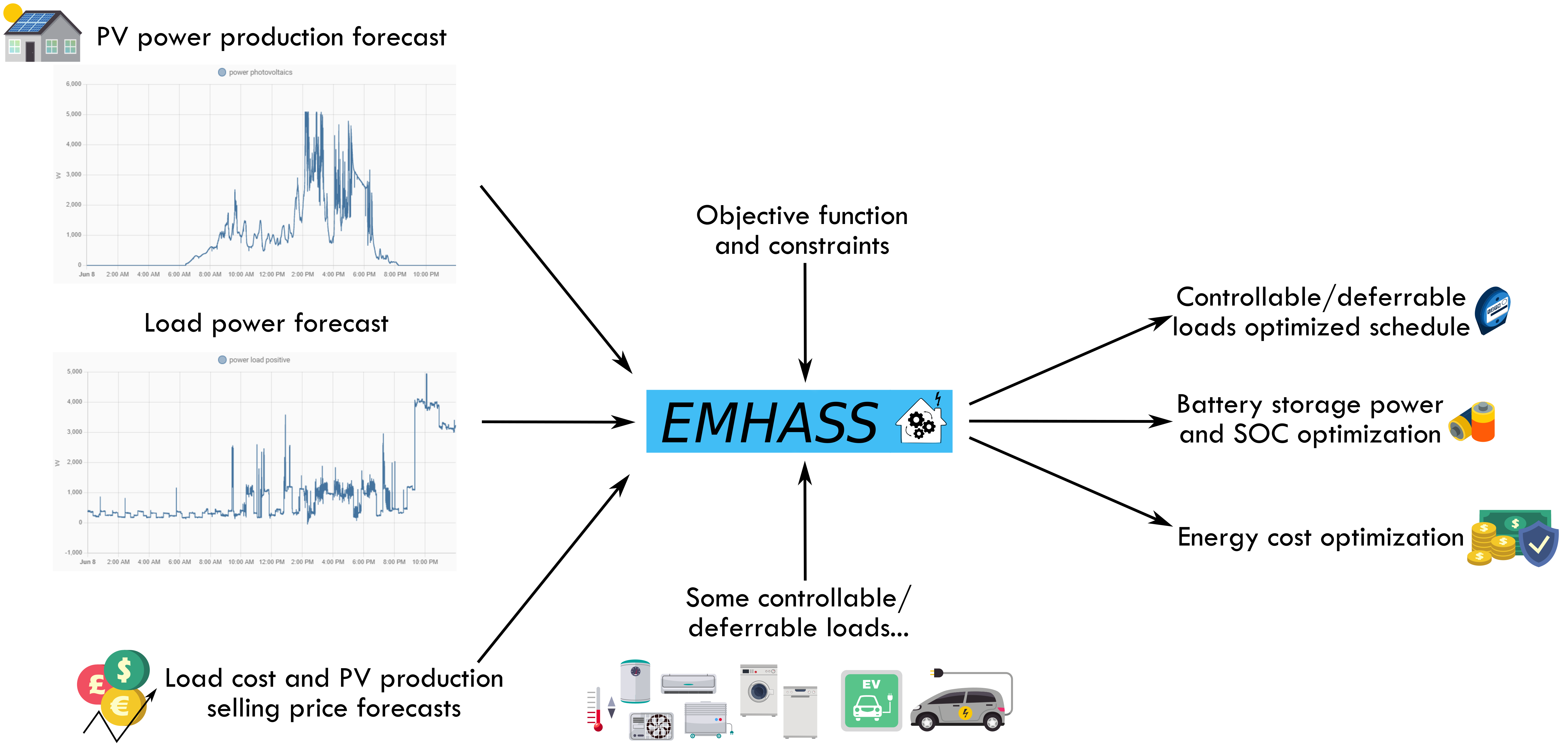
EMHASS is a powerful energy management tool that generates an optimization plan based on variables such as solar power production, energy usage, and energy costs. The plan provides valuable insights into how energy can be better managed and utilized in the household. Even if households do not have all the necessary equipment, such as solar panels or batteries, EMHASS can still provide a minimal use case solution to optimize energy usage for controllable/deferrable loads.
Home Assistant provides a platform for the automation of household devices based on the optimization plan generated by EMHASS. This includes devices such as batteries, pool pumps, hot water heaters, and electric vehicle (EV) chargers. By automating EV charging and other devices, households can take advantage of off-peak energy rates and optimize their EV charging schedule based on the optimization plan generated by EMHASS.
One of the main benefits of integrating EMHASS and Home Assistant is the ability to customize and tailor the energy management solution to the specific needs and preferences of each household. With EMHASS, households can define their energy management objectives and constraints, such as maximizing self-consumption or minimizing energy costs, and the system will generate an optimization plan accordingly. Home Assistant provides a platform for the automation of devices based on the optimization plan, allowing households to create a fully customized and optimized energy management solution.
Overall, the integration of EMHASS and Home Assistant offers a comprehensive energy management solution that provides significant cost savings, increased energy efficiency, and greater sustainability for households. By leveraging advanced energy management features and automation capabilities, households can achieve their energy management objectives while enjoying the benefits of more efficient and sustainable energy usage, including optimized EV charging schedules.
The package flow can be graphically represented as follows:
Configuration and Installation
The package is meant to be highly configurable with an object-oriented modular approach and a main configuration file defined by the user. EMHASS was designed to be integrated with Home Assistant, hence its name. Installation instructions and example Home Assistant automation configurations are given below.
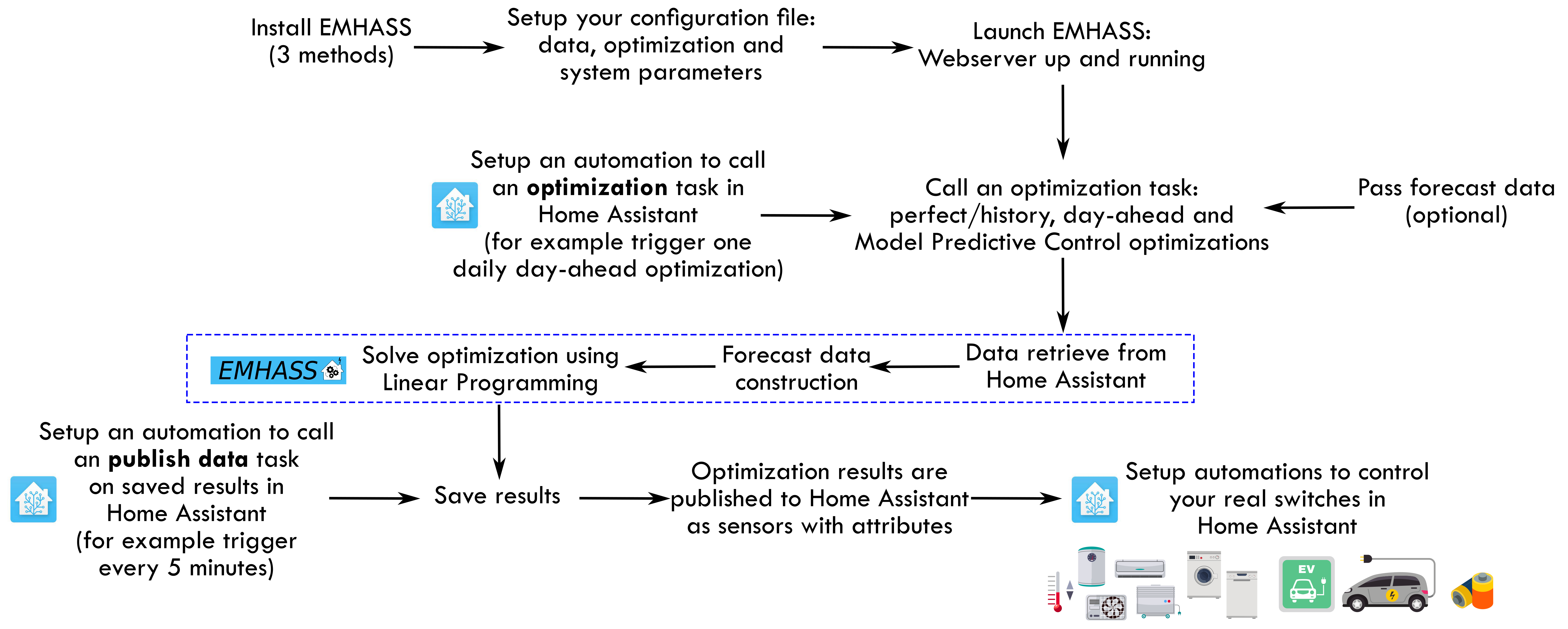
You must follow these steps to make EMHASS work properly:
1) Install and run EMHASS. - There are multiple methods of installing and Running EMHASS. See Installation Method below to pick a method that best suits your use case.
2) Define all the parameters in the configuration file (config.json) or configuration page (YOURIP:5000/configuration).
- Since EMHASS v0.12.0: the default configuration does not need to retrieve any data from Home Assistant! After installing and running the add-on, EMHASS should start and it will be ready to launch an optimization.
- See the description for each parameter in the configuration docs.
- EMHASS has a default configuration with 2 deferrable loads, no solar PV, no batteries and a basic load power forecasting method.
- If you want to consider solar PV and more advanced load power forecast methods, you will need to define the main data entering EMHASS. This will be the Home Assistant sensor/variable sensor.power_load_no_var_loads, for the load power of your household excluding the power of the deferrable loads that you want to optimize, and the sensor/variable sensor.power_photovoltaics for the name of your Home Assistant variable containing the PV produced power (if solar PV is activated).
- If you have a PV installation then this dedicated web app can be useful for finding your inverter and solar panel models: https://emhass-pvlib-database.streamlit.app/
4) Launch the optimization and check the results.
- This can be done manually using the buttons in the web UI
- Or with a curl command like this: curl -i -H 'Content-Type:application/json' -X POST -d '{}' http://localhost:5000/action/dayahead-optim.
5) If you’re satisfied with the optimization results then you can set the optimization and data publish task commands in an automation. - You can read more about this in the usage section below.
6) The final step is to link the deferrable loads variables to real switches on your installation. - An example code for this using automations and the shell command integration is presented below in the usage section.
A more detailed workflow is given below:
Installation Methods
Method 1) The EMHASS add-on for Home Assistant OS and supervised users
For Home Assistant OS and HA Supervised users, A EMHASS an add-on repository has been developed to allow the EMHASS Docker container to run as a Home Assistant Addon. The add-on is more user-friendly as the Home Assistant secrets (URL and API key) are automatically placed inside of the EMHASS container, and web server port (default 5000) is already opened.
You can find the add-on with the installation instructions here: https://github.com/davidusb-geek/emhass-add-on
These architectures are supported: amd64 and aarch64 (currently armv7 and armhf are not supported).
Note: Both EMHASS via Docker and EMHASS-Add-on contain the same Docker image. The EMHASS-Add-on repository however, stores Home Assistant addon specific configuration information and maintains EMHASS image version control.
Method 2) Running EMHASS in Docker
You can also install EMHASS using Docker as a container. This can be in the same machine as Home Assistant (if your running Home Assistant as a Docker container) or in a different distant machine. The "share" folder is where EMHASS stores the config.json file. In the examples below adjust the "-v" volume mappings to reflect where your path to the local host directory needs to be mapped to. To install first pull the latest image: ```bash
pull Docker image
docker pull ghcr.io/davidusb-geek/emhass:latest
run Docker image, mounting the dir storing config.json and secrets_emhass.yaml from host
docker run --rm -it --restart always -p 5000:5000 --name emhass-container -v /emhass/share:/share/ -v /emhass/secretsemhass.yaml:/app/secretsemhass.yaml ghcr.io/davidusb-geek/emhass:latest
``
*Note it is not recommended to install the latest EMHASS image with:latest*(as you would likely want to control when you update EMHASS version)*. Instead, find the [latest version tag](https://github.com/davidusb-geek/emhass/pkgs/container/emhass) (E.g:v0.2.1) and replacelatest`*
You can also build your image locally. For this clone this repository, and build the image from the Dockerfile: ```bash
git clone EMHASS repo
git clone https://github.com/davidusb-geek/emhass.git
move to EMHASS directory
cd emhass
build Docker image
may need to set architecture tag (docker build --build-arg TARGETARCH=amd64 -t emhass-local .)
docker build -t emhass-local .
run built Docker image, mounting config.json and secrets_emhass.yaml from host
docker run --rm -it -p 5000:5000 --name emhass-container -v /emhass/share:/share -v /emhass/secretsemhass.yaml:/app/secretsemhass.yaml emhass-local ```
Before running the docker container, make sure you have a designated folder for emhass on your host device and a secrets_emhass.yaml file. You can get a example of the secrets file from secrets_emhass(example).yaml file on this repository.
```bash
cli example of creating an emhass directory and appending a secrets_emhass.yaml file inside
mkdir ~/emhass
cd ~/emhass
cat <
Docker, things to note
You can create a
config.jsonfile prior to running emhass. (obtain a example from: config_defaults.json Alteratively, you can insert your parameters into the configuration page on the EMHASS web server. (for EMHASS to auto create a config.json) With either option, the volume mount-v /emhass/share:/shareshould be applied to make sure your config is stored on the host device. (to be not deleted when the EMHASS container gets removed/image updated)*If you wish to keep a local, semi-persistent copy of the EMHASS-generated data, create a local folder on your device, then mount said folder inside the container.
```bashcreate data folder
mkdir -p ~/emhass/data docker run -it --restart always -p 5000:5000 -e LOCALCOSTFUN="profit" -v /emhass/share:/share -v /emhass/data:/data -v /emhass/secretsemhass.yaml:/app/secrets_emhass.yaml --name DockerEMHASS REPOSITORY:TAG ```
If you wish to set the webserver's homepage optimization diagrams to a timezone other than UTC, set
TZenvironment variable on docker run: ```bash docker run -it --restart always -p 5000:5000 -e TZ="Europe/Paris" -v /emhass/share:/share -v /emhass/secretsemhass.yaml:/app/secrets_emhass.yaml --name DockerEMHASS REPOSITORY:TAG ```Method 3) Legacy method using a Python virtual environment (Legacy CLI)
If you wish to run EMHASS optimizations with cli commands. (no persistent web server session) you can run EMHASS via the python package alone (not wrapped in a Docker container).
With this method it is recommended to install on a virtual environment.
- Create and activate a virtual environment:
bash
  python3 -m venv ~/emhassenv
  cd ~/emhassenv
  source bin/activate
- Install using the distribution files:
bash
  python3 -m pip install emhass
- Create and store configuration (config.json), secret (secretsemhass.yaml) and data (/data) files in the emhass dir (~/emhassenv)
Note: You may wish to copy the config.json (configdefaults.json), secrets_emhass.yaml (secrets_emhass(example).yaml) and/or /scripts/ files from this repository to the ~/emhassenv folder for a starting point and/or to run the bash scripts described below.
- To upgrade the installation in the future just use:
bash
python3 -m pip install --upgrade emhass
Usage
Method 1) Add-on and Docker
If using the add-on or the Docker installation, it exposes a simple webserver on port 5000. You can access it directly using your browser. (E.g.: http://localhost:5000)
With this web server, you can perform RESTful POST commands on multiple ENDPOINTS with the prefix action/*:
- A POST call to
action/perfect-optimto perform a perfect optimization task on the historical data. - A POST call to
action/dayahead-optimto perform a day-ahead optimization task of your home energy. - A POST call to
action/naive-mpc-optimto perform a naive Model Predictive Controller optimization task. If using this option you will need to define the correctruntimeparams(see further below). - A POST call to
action/publish-datato publish the optimization results data for the current timestamp. - A POST call to
action/forecast-model-fitto train a machine learning forecaster model with the passed data (see the dedicated section for more help). - A POST call to
action/forecast-model-predictto obtain a forecast from a pre-trained machine learning forecaster model (see the dedicated section for more help). - A POST call to
action/forecast-model-tuneto optimize the machine learning forecaster models hyperparameters using Bayesian optimization (see the dedicated section for more help).
A curl command can then be used to launch an optimization task like this: curl -i -H 'Content-Type:application/json' -X POST -d '{}' http://localhost:5000/action/dayahead-optim.
Method 2) Legacy method using a Python virtual environment
To run a command simply use the emhass CLI command followed by the needed arguments.
The available arguments are:
- --action: This is used to set the desired action, options are: perfect-optim, dayahead-optim, naive-mpc-optim, publish-data, forecast-model-fit, forecast-model-predict and forecast-model-tune.
- --config: Define the path to the config.json file (including the yaml file itself)
- --secrets: Define secret parameter file (secrets_emhass.yaml) path
- --costfun: Define the type of cost function, this is optional and the options are: profit (default), cost, self-consumption
- --log2file: Define if we should log to a file or not, this is optional and the options are: True or False (default)
- --params: Configuration as JSON.
- --runtimeparams: Data passed at runtime. This can be used to pass your own forecast data to EMHASS.
- --debug: Use True for testing purposes.
- --version: Show the current version of EMHASS.
- --root: Define path emhass root (E.g. ~/emhass )
- --data: Define path to the Data files (.csv & .pkl) (E.g. ~/emhass/data/ )
For example, the following line command can be used to perform a day-ahead optimization task:
bash
emhass --action 'dayahead-optim' --config ~/emhass/config.json --costfun 'profit'
Before running any valuable command you need to modify the config.json and secrets_emhass.yaml files. These files should contain the information adapted to your own system. To do this take a look at the special section for this in the documentation.
Home Assistant Automation
To automate EMHASS with Home Assistant, we will need to define some shell commands in the Home Assistant configuration.yaml file and some basic automations in the automations.yaml file.
In the next few paragraphs, we are going to consider the dayahead-optim optimization strategy, which is also the first that was implemented, and we will also cover how to publish the optimization results.
Additional optimization strategies were developed later, that can be used in combination with/replace the dayahead-optim strategy, such as MPC, or to expand the functionalities such as the Machine Learning method to predict your household consumption. Each of them has some specificities and features and will be considered in dedicated sections.
Dayahead Optimization - Method 1) Add-on and docker standalone
We can use the shell_command integration in configuration.yaml:
yaml
shell_command:
  dayahead_optim: "curl -i -H \"Content-Type:application/json\" -X POST -d '{}' http://localhost:5000/action/dayahead-optim"
  publish_data: "curl -i -H \"Content-Type:application/json\" -X POST -d '{}' http://localhost:5000/action/publish-data"
An alternative that will be useful when passing data at runtime (see dedicated section), we can use the the rest_command instead:
yaml
rest_command:
  url: http://127.0.0.1:5000/action/dayahead-optim
  method: POST
  headers:
    content-type: application/json
  payload: >-
    {}
Dayahead Optimization - Method 2) Legacy method using a Python virtual environment
In configuration.yaml:
yaml
shell_command:
  dayahead_optim: ~/emhass/scripts/dayahead_optim.sh
  publish_data: ~/emhass/scripts/publish_data.sh
Create the file dayahead_optim.sh with the following content:
```bash
!/bin/bash
. ~/emhassenv/bin/activate
emhass --action 'dayahead-optim' --config ~/emhass/config.json
And the file `publish_data.sh` with the following content:
bash
!/bin/bash
. ~/emhassenv/bin/activate
emhass --action 'publish-data' --config ~/emhass/config.json
Then specify user rights and make the files executables:
bash
sudo chmod -R 755 ~/emhass/scripts/dayaheadoptim.sh
sudo chmod -R 755 ~/emhass/scripts/publishdata.sh
sudo chmod +x ~/emhass/scripts/dayaheadoptim.sh
sudo chmod +x ~/emhass/scripts/publishdata.sh
```
Common for any installation method
Options 1, Home Assistant automate publish
In automations.yaml:
yaml
- alias: EMHASS day-ahead optimization
  trigger:
    platform: time
    at: '05:30:00'
  action:
  - service: shell_command.dayahead_optim
- alias: EMHASS publish data
  trigger:
  - minutes: /5
    platform: time_pattern
  action:
  - service: shell_command.publish_data
In these automations the day-ahead optimization is performed once a day, every day at 5:30am, and the data (output of automation) is published every 5 minutes.
Option 2, EMHASS automated publish
In automations.yaml:
yaml
- alias: EMHASS day-ahead optimization
  trigger:
    platform: time
    at: '05:30:00'
  action:
  - service: shell_command.dayahead_optim
  - service: shell_command.publish_data
in configuration page/config.json
json
"method_ts_round": "first"
"continual_publish": true
In this automation, the day-ahead optimization is performed once a day, every day at 5:30am.
If the optimization_time_step parameter is set to 30 (default) in the configuration, the results of the day-ahead optimization will generate 48 values (for each entity), a value for every 30 minutes in a day (i.e. 24 hrs x 2).
Setting the parameter continual_publish to true in the configuration page will allow EMHASS to store the optimization results as entities/sensors into separate json files. continual_publish will periodically (every optimization_time_step amount of minutes) run a publish, and publish the optimization results of each generated entities/sensors to Home Assistant. The current state of the sensor/entity being updated every time publish runs, selecting one of the 48 stored values, by comparing the stored values' timestamps, the current timestamp and 'method_ts_round': "first" to select the optimal stored value for the current state.
option 1 and 2 are very similar, however, option 2 (continual_publish) will require a CPU thread to constantly be run inside of EMHASS, lowering efficiency. The reason why you may pick one over the other is explained in more detail below in continual_publish.
Lastly, we can link an EMHASS published entity/sensor's current state to a Home Assistant entity on/off switch, controlling a desired controllable load.
For example, imagine that I want to control my water heater. I can use a published deferrable EMHASS entity to control my water heater's desired behavior. In this case, we could use an automation like the below, to control the desired water heater on and off:
on:
yaml
automation:
- alias: Water Heater Optimized ON
  trigger:
  - minutes: /5
    platform: time_pattern
  condition:
  - condition: numeric_state
    entity_id: sensor.p_deferrable0
    above: 0.1
  action:
    - service: homeassistant.turn_on
      entity_id: switch.water_heater_switch
off:
yaml
automation:
- alias: Water Heater Optimized OFF
  trigger:
  - minutes: /5
    platform: time_pattern
  condition:
  - condition: numeric_state
    entity_id: sensor.p_deferrable0
    below: 0.1
  action:
    - service: homeassistant.turn_off
      entity_id: switch.water_heater_switch
These automations will turn on and off the Home Assistant entity switch.water_heater_switch using the current state from the EMHASS entity sensor.p_deferrable0. sensor.p_deferrable0 being the entity generated from the EMHASS day-ahead optimization and published by examples above. The sensor.p_deferrable0 entity's current state is updated every 30 minutes (or optimization_time_step minutes) via an automated publish option 1 or 2. (selecting one of the 48 stored data values)
The publish-data specificities
publish-data (which is either run manually or automatically via continual_publish or Home Assistant automation), will push the optimization results to Home Assistant for each deferrable load defined in the configuration. For example, if you have defined two deferrable loads, then the command will publish sensor.p_deferrable0 and sensor.p_deferrable1 to Home Assistant. When the dayahead-optim is launched, after the optimization, either entity json files or a csv file will be saved on disk. The publish-data command will load the latest csv/json files to look for the closest timestamp that matches the current time using the datetime.now() method in Python. This means that if EMHASS is configured for 30-minute time step optimizations, the csv/json will be saved with timestamps 00:00, 00:30, 01:00, 01:30, ... and so on. If the current time is 00:05, and parameter method_ts_round is set to nearest in the configuration, then the closest timestamp of the optimization results that will be published is 00:00. If the current time is 00:25, then the closest timestamp of the optimization results that will be published is 00:30.
The publish-data command will also publish PV and load forecast data on sensors p_pv_forecast and p_load_forecast. If using a battery, then the battery-optimized power and the SOC will be published on sensors p_batt_forecast and soc_batt_forecast. On these sensors, the future values are passed as nested attributes.
If you run publish manually (or via a Home Assistant Automation), it is possible to provide custom sensor names for all the data exported by the publish-data command. For this, when using the publish-data endpoint we can just add some runtime parameters as dictionaries like this:
yaml
shell_command:
  publish_data: "curl -i -H \"Content-Type:application/json\" -X POST -d '{\"custom_load_forecast_id\": {\"entity_id\": \"sensor.p_load_forecast\", \"unit_of_measurement\": \"W\", \"friendly_name\": \"Load Power Forecast\"}}' http://localhost:5000/action/publish-data"
These keys are available to modify: custom_pv_forecast_id, custom_load_forecast_id, custom_batt_forecast_id, custom_batt_soc_forecast_id, custom_grid_forecast_id, custom_cost_fun_id, custom_deferrable_forecast_id, custom_unit_load_cost_id and custom_unit_prod_price_id.
If you provide the custom_deferrable_forecast_id then the passed data should be a list of dictionaries, like this:
yaml
shell_command:
  publish_data: "curl -i -H \"Content-Type:application/json\" -X POST -d '{\"custom_deferrable_forecast_id\": [{\"entity_id\": \"sensor.p_deferrable0\",\"unit_of_measurement\": \"W\", \"friendly_name\": \"Deferrable Load 0\"},{\"entity_id\": \"sensor.p_deferrable1\",\"unit_of_measurement\": \"W\", \"friendly_name\": \"Deferrable Load 1\"}]}' http://localhost:5000/action/publish-data"
You should be careful that the list of dictionaries has the correct length, which is the number of defined deferrable loads.
Computed variables and published data
Below you can find a list of the variables resulting from EMHASS computation, shown in the charts and published to Home Assistant through the publish_data command:
| EMHASS variable | Definition | Home Assistant published sensor |
| --------------- | ---------- | --------------------------------|
| PPV | Forecasted power generation from your solar panels (Watts). This helps you predict how much solar energy you will produce during the forecast period. | sensor.ppvforecast |
| PLoad | Forecasted household power consumption (Watts). This gives you an idea of how much energy your appliances are expected to use. | sensor.ploadforecast |
| PdeferrableX
[X = 0, 1, 2, ...] | Forecasted power consumption of deferrable loads (Watts). Deferable loads are appliances that can be managed by EMHASS. EMHASS helps you optimize energy usage by prioritizing solar self-consumption and minimizing reliance on the grid or by taking advantage or supply and feed-in tariff volatility. You can have multiple deferable loads and you use this sensor in HA to control these loads via smart switch or other IoT means at your disposal. | sensor.pdeferrableX |
| Pgridpos | Forecasted power imported from the grid (Watts). This indicates the amount of energy you are expected to draw from the grid when your solar production is insufficient to meet your needs or it is advantageous to consume from the grid. | - |
| Pgridneg | Forecasted power exported to the grid (Watts). This indicates the amount of excess solar energy you are expected to send back to the grid during the forecast period. | - |
| Pbatt | Forecasted (dis)charge power load (Watts) for the battery (if installed). If negative it indicates the battery is charging, if positive that the battery is discharging. | sensor.pbattforecast |
| Pgrid | Forecasted net power flow between your home and the grid (Watts). This is calculated as Pgridpos + Pgridneg. A positive value indicates net import, while a negative value indicates net export. | sensor.pgridforecast |
| SOCopt | Forecasted battery optimized Status Of Charge (SOC) percentage level | sensor.socbattforecast |
| unitloadcost | Forecasted cost per unit of energy you pay to the grid (typically "Currency"/kWh). This helps you understand the expected energy cost during the forecast period. | sensor.unitloadcost |
| unitprodprice | Forecasted price you receive for selling excess solar energy back to the grid (typically "Currency"/kWh). This helps you understand the potential income from your solar production. | sensor.unitprodprice |
| costprofit | Forecasted profit or loss from your energy usage for the forecast period. This is calculated as unitloadcost * PLoad - unitprodprice * Pgridpos. A positive value indicates a profit, while a negative value indicates a loss. | sensor.totalcostprofitvalue |
| costfuncost | Forecasted cost associated with deferring loads to maximize solar self-consumption. This helps you evaluate the trade-off between managing the load and not managing and potential cost savings. | sensor.totalcostfunvalue |
| optimstatus | This contains the status of the latest execution and is the same you can see in the Log following an optimization job. Its values can be Optimal or Infeasible. | sensor.optim_status |
Passing your own data
In EMHASS we have 4 forecasts to deal with:
PV power production forecast (internally based on the weather forecast and the characteristics of your PV plant). This is given in Watts.
Load power forecast: how much power your house will demand in the next 24 hours. This is given in Watts.
Load cost forecast: the price of the energy from the grid in the next 24 hours. This is given in EUR/kWh.
PV production selling price forecast: at what price are you selling your excess PV production in the next 24 hours. This is given in EUR/kWh.
The sensor containing the load data should be specified in the parameter sensor_power_load_no_var_loads in the configuration file. As we want to optimize household energy, we need to forecast the load power consumption. The default method for this is a naive approach using 1-day persistence. The load data variable should not contain the data from the deferrable loads themselves. For example, let's say that you set your deferrable load to be the washing machine. The variables that you should enter in EMHASS will be: sensor_power_load_no_var_loads: 'sensor.power_load_no_var_loads' and sensor.power_load_no_var_loads = sensor.power_load - sensor.power_washing_machine. This is supposing that the overall load of your house is contained in the variable: sensor.power_load. The sensor sensor.power_load_no_var_loads can be easily created with a new template sensor in Home Assistant.
If you are implementing an MPC controller, then you should also need to provide some data at the optimization runtime using the key runtimeparams.
The valid values to pass for both forecast data and MPC-related data are explained below.
Alternative publish methods
Due to the flexibility of EMHASS, multiple different approaches to publishing the optimization results have been created. Select an option that best meets your use case:
publish last optimization (manual)
By default, running an optimization in EMHASS will output the results into the CSV file: data_path/opt_res_latest.csv (overriding the existing data on that file). We run the publish command to publish the last optimization saved in the opt_res_latest.csv:
```bash
RUN dayahead
curl -i -H 'Content-Type:application/json' -X POST -d {} http://localhost:5000/action/dayahead-optim
Then publish teh results of dayahead
curl -i -H 'Content-Type:application/json' -X POST -d {} http://localhost:5000/action/publish-data ``` Note, the published entities from the publish-data action will not automatically update the entities' current state (current state being used to check when to turn on and off appliances via Home Assistant automations). To update the EMHASS entities state, another publish would have to be re-run later when the current time matches the next value's timestamp (e.g. every 30 minutes). See examples below for methods to automate the publish-action.
continual_publish (EMHASS Automation)
As discussed in Common for any installation method - option 2, setting continual_publish to true in the configuration saves the output of the optimization into the data_path/entities folder (a .json file for each sensor/entity). A constant loop (in optimization_time_step minutes) will run, observe the .json files in that folder, and publish the saved files periodically (updating the current state of the entity by comparing date.now with the saved data value timestamps).
For users that wish to run multiple different optimizations, you can set the runtime parameter: publish_prefix to something like: "mpc_" or "dh_". This will generate unique entityid names per optimization and save these unique entities as separate files in the folder. All the entity files will then be updated when the next loop iteration runs. If a different `optimizationtimestepinteger was passed as a runtime parameter in an optimization, thecontinualpublishloop will be based on the lowestoptimizationtimestep` saved. An example:
```bash
RUN dayahead, with optimizationtimestep=30 (default), prefix=dh_
curl -i -H 'Content-Type:application/json' -X POST -d '{"publishprefix":"dh"}' http://localhost:5000/action/dayahead-optim
RUN MPC, with optimizationtimestep=5, prefix=mpc_
curl -i -H 'Content-Type:application/json' -X POST -d '{'optimizationtimestep':5,"publishprefix":"mpc"}' http://localhost:5000/action/naive-mpc-optim ``` This will tell continualpublish to loop every 5 minutes based on the optimizationtimestep passed in MPC. All entities from the output of dayahead "dh" and MPC "mpc_" will be published every 5 minutes.
It is recommended to use the 2 other options below once you have a more advanced understanding of EMHASS and/or Home Assistant.
Mixture of continual_publish and manual (Home Assistant Automation for Publish)
You can choose to save one optimization for continualpublish and bypass another optimization by setting `'continualpublish':falseruntime parameter:
``bash
RUN dayahead, with optimizationtimestep=30 (default), prefix=dh, included into continualpublish
curl -i -H 'Content-Type:application/json' -X POST -d '{"publishprefix":"dh"}' http://localhost:5000/action/dayahead-optim
RUN MPC, with optimizationtimestep=5, prefix=mpc, Manually publish, excluded from continualpublish loop
curl -i -H 'Content-Type:application/json' -X POST -d '{'continualpublish':false,'optimizationtimestep':5,"publishprefix":"mpc_"}' http://localhost:5000/action/naive-mpc-optim
Publish MPC output
curl -i -H 'Content-Type:application/json' -X POST -d {} http://localhost:5000/action/publish-data
``
This example saves the dayahead optimization intodatapath/entitiesas .json files, being included in thecontinutalpublishloop (publishing every 30 minutes). The MPC optimization will not be saved indatapath/entities, and therefore only intodatapath/optreslatest.csv`. Requiring a publish-data action to be run manually (or via a Home Assistant) Automation for the MPC results.
Manual (Home Assistant Automation for Publish)
For users who wish to have full control of exactly when they would like to run a publish and have the ability to save multiple different optimizations. The entity_save runtime parameter has been created to save the optimization output entities to .json files whilst continual_publish is set to false in the configuration. Allowing the user to reference the saved .json files manually via a publish:
in configuration page/config.json :
json
"continual_publish": false
POST action :
```bash
RUN dayahead, with optimizationtimestep=30 (default), prefix=dh_, save entity
curl -i -H 'Content-Type:application/json' -X POST -d '{"entitysave": true, "publishprefix":"dh_"}' http://localhost:5000/action/dayahead-optim
RUN MPC, with optimizationtimestep=5, prefix=mpc_, save entity
curl -i -H 'Content-Type:application/json' -X POST -d '{"entitysave": true", 'optimizationtimestep':5,"publishprefix":"mpc"}' http://localhost:5000/action/naive-mpc-optim
``
You can then reference these .json saved entities via theirpublishprefix. Include the samepublishprefixin thepublishdataaction:
``bash
Publish the MPC optimization ran above
curl -i -H 'Content-Type:application/json' -X POST -d '{"publishprefix":"mpc"}' http://localhost:5000/action/publish-data
This will publish all entities from the MPC (_mpc) optimization above.
</br>
Alternatively, you can choose to publish all the saved files .json files with `publish_prefix` = all:
bash
Publish all saved entities
curl -i -H 'Content-Type:application/json' -X POST -d '{"publishprefix":"all"}' http://localhost:5000/action/publish-data ``` This action will publish the dayahead (dh) and MPC (_mpc) optimization results from the optimizations above.
Forecast data at runtime
It is possible to provide EMHASS with your own forecast data. For this just add the data as a list of values to a data dictionary during the call to emhass using the runtimeparams option.
For example, if using the add-on or the standalone docker installation you can pass this data as a list of values to the data dictionary during the curl POST:
bash
curl -i -H 'Content-Type:application/json' -X POST -d '{"pv_power_forecast":[0, 0, 0, 0, 0, 0, 0, 0, 0, 0, 0, 0, 0, 0, 0, 0, 70, 141.22, 246.18, 513.5, 753.27, 1049.89, 1797.93, 1697.3, 3078.93, 1164.33, 1046.68, 1559.1, 2091.26, 1556.76, 1166.73, 1516.63, 1391.13, 1720.13, 820.75, 804.41, 251.63, 79.25, 0, 0, 0, 0, 0, 0, 0, 0, 0, 0]}' http://localhost:5000/action/dayahead-optim
Or if using the legacy method using a Python virtual environment:
bash
emhass --action 'dayahead-optim' --config ~/emhass/config.json --runtimeparams '{"pv_power_forecast":[0, 0, 0, 0, 0, 0, 0, 0, 0, 0, 0, 0, 0, 0, 0, 0, 70, 141.22, 246.18, 513.5, 753.27, 1049.89, 1797.93, 1697.3, 3078.93, 1164.33, 1046.68, 1559.1, 2091.26, 1556.76, 1166.73, 1516.63, 1391.13, 1720.13, 820.75, 804.41, 251.63, 79.25, 0, 0, 0, 0, 0, 0, 0, 0, 0, 0]}'
The possible dictionary keys to pass data are:
pv_power_forecastfor the PV power production forecast.load_power_forecastfor the Load power forecast.load_cost_forecastfor the Load cost forecast.prod_price_forecastfor the PV production selling price forecast.
Passing other data at runtime
It is possible to also pass other data during runtime to automate energy management. For example, it could be useful to dynamically update the total number of hours for each deferrable load (operating_hours_of_each_deferrable_load) using for instance a correlation with the outdoor temperature (useful for water heater for example).
Here is the list of the other additional dictionary keys that can be passed at runtime:
number_of_deferrable_loadsfor the number of deferrable loads to consider.nominal_power_of_deferrable_loadsfor the nominal power for each deferrable load in Watts.operating_hours_of_each_deferrable_loadfor the total number of hours that each deferrable load should operate.- Alteratively, you can pass
operating_timesteps_of_each_deferrable_loadto set the total number of timesteps for each deferrable load. (better parameter to use for setting under 1 hr)
- Alteratively, you can pass
start_timesteps_of_each_deferrable_loadfor the timestep from which each deferrable load is allowed to operate (if you don't want the deferrable load to use the whole optimization timewindow).end_timesteps_of_each_deferrable_loadfor the timestep before which each deferrable load should operate (if you don't want the deferrable load to use the whole optimization timewindow).def_current_statePass this as a list of booleans (True/False) to indicate the current deferrable load state. This is used internally to avoid incorrectly penalizing a deferrable load start if a forecast is run when that load is already running.treat_deferrable_load_as_semi_contto define if we should treat each deferrable load as a semi-continuous variable.set_deferrable_load_single_constantto define if we should set each deferrable load as a constant fixed value variable with just one startup for each optimization task.solcast_api_keyfor the SolCast API key if you want to use this service for PV power production forecast.solcast_rooftop_idfor the ID of your rooftop for the SolCast service implementation.solar_forecast_kwpfor the PV peak installed power in kW used for the solar.forecast API call.battery_minimum_state_of_chargethe minimum possible SOC.battery_maximum_state_of_chargethe maximum possible SOC.battery_target_state_of_chargefor the desired target value of the initial and final SOC.battery_discharge_power_maxfor the maximum battery discharge power.battery_charge_power_maxfor the maximum battery charge power.publish_prefixuse this key to pass a common prefix to all published data. This will add a prefix to the sensor name but also the forecast attribute keys within the sensor.
A naive Model Predictive Controller
An MPC controller was introduced in v0.3.0. This is an informal/naive representation of an MPC controller. This can be used in combination with/as a replacement for the Dayahead Optimization.
An MPC controller performs the following actions:
- Set the prediction horizon and receding horizon parameters.
- Perform an optimization on the prediction horizon.
- Apply the first element of the obtained optimized control variables.
- Repeat at a relatively high frequency, ex: 5 min.
This is the receding horizon principle.
When applying this controller, the following runtimeparams should be defined:
prediction_horizonfor the MPC prediction horizon. Fix this at least 5 times the optimization time step.soc_initfor the initial value of the battery SOC for the current iteration of the MPC.soc_finalfor the final value of the battery SOC for the current iteration of the MPC.operating_hours_of_each_deferrable_loadfor the list of deferrable loads functioning hours. These values can decrease as the day advances to take into account receding horizon daily energy objectives for each deferrable load.start_timesteps_of_each_deferrable_loadfor the timestep from which each deferrable load is allowed to operate (if you don't want the deferrable load to use the whole optimization timewindow). If you specify a value of 0 (or negative), the deferrable load will be optimized as from the beginning of the complete prediction horizon window.end_timesteps_of_each_deferrable_loadfor the timestep before which each deferrable load should operate (if you don't want the deferrable load to use the whole optimization timewindow). If you specify a value of 0 (or negative), the deferrable load optimization window will extend up to the end of the prediction horizon window.
A correct call for an MPC optimization should look like this:
bash
curl -i -H 'Content-Type:application/json' -X POST -d '{"pv_power_forecast":[0, 70, 141.22, 246.18, 513.5, 753.27, 1049.89, 1797.93, 1697.3, 3078.93], "prediction_horizon":10, "soc_init":0.5,"soc_final":0.6}' http://192.168.3.159:5000/action/naive-mpc-optim
Example with :operating_hours_of_each_deferrable_load, start_timesteps_of_each_deferrable_load, end_timesteps_of_each_deferrable_load.
bash
curl -i -H 'Content-Type:application/json' -X POST -d '{"pv_power_forecast":[0, 70, 141.22, 246.18, 513.5, 753.27, 1049.89, 1797.93, 1697.3, 3078.93], "prediction_horizon":10, "soc_init":0.5,"soc_final":0.6,"operating_hours_of_each_deferrable_load":[1,3],"start_timesteps_of_each_deferrable_load":[0,3],"end_timesteps_of_each_deferrable_load":[0,6]}' http://localhost:5000/action/naive-mpc-optim
For a more readable option we can use the rest_command integration:
yaml
rest_command:
  url: http://127.0.0.1:5000/action/dayahead-optim
  method: POST
  headers:
    content-type: application/json
  payload: >-
    {
      "pv_power_forecast": [0, 70, 141.22, 246.18, 513.5, 753.27, 1049.89, 1797.93, 1697.3, 3078.93],
      "prediction_horizon":10,
      "soc_init":0.5,
      "soc_final":0.6,
      "operating_hours_of_each_deferrable_load":[1,3],
      "start_timesteps_of_each_deferrable_load":[0,3],
      "end_timesteps_of_each_deferrable_load":[0,6]
    }
A machine learning forecaster
Starting in v0.4.0 a new machine learning forecaster class was introduced. This is intended to provide a new and alternative method to forecast your household consumption and use it when such forecast is needed to optimize your energy through the available strategies. Check the dedicated section in the documentation here: https://emhass.readthedocs.io/en/latest/mlforecaster.html
Development
Pull requests are very much accepted on this project. For development, you can find some instructions here Development.
Troubleshooting
Some problems may arise from solver-related issues in the Pulp package. It was found that for arm64 architectures (ie. Raspberry Pi4, 64 bits) the default solver is not available. A workaround is to use another solver. The glpk solver is an option.
This can be controlled in the configuration file with parameters lp_solver and lp_solver_path. The options for lp_solver are: 'PULPCBCCMD', 'GLPKCMD', 'HiGHS', and 'COINCMD'. If using 'COINCMD' as the solver you will need to provide the correct path to this solver in parameter `lpsolver_path`, ex: '/usr/bin/cbc'.
License
MIT License
Copyright (c) 2021-2025 David HERNANDEZ
Permission is hereby granted, free of charge, to any person obtaining a copy of this software and associated documentation files (the "Software"), to deal in the Software without restriction, including without limitation the rights to use, copy, modify, merge, publish, distribute, sublicense, and/or sell copies of the Software, and to permit persons to whom the Software is furnished to do so, subject to the following conditions:
The above copyright notice and this permission notice shall be included in all copies or substantial portions of the Software.
THE SOFTWARE IS PROVIDED "AS IS", WITHOUT WARRANTY OF ANY KIND, EXPRESS OR IMPLIED, INCLUDING BUT NOT LIMITED TO THE WARRANTIES OF MERCHANTABILITY, FITNESS FOR A PARTICULAR PURPOSE AND NONINFRINGEMENT. IN NO EVENT SHALL THE AUTHORS OR COPYRIGHT HOLDERS BE LIABLE FOR ANY CLAIM, DAMAGES OR OTHER LIABILITY, WHETHER IN AN ACTION OF CONTRACT, TORT OR OTHERWISE, ARISING FROM, OUT OF OR IN CONNECTION WITH THE SOFTWARE OR THE USE OR OTHER DEALINGS IN THE SOFTWARE.
Owner
- Name: David
- Login: davidusb-geek
- Kind: user
- Location: Grenoble, France
- Repositories: 2
- Profile: https://github.com/davidusb-geek
GitHub Events
Total
- Create event: 41
- Commit comment event: 4
- Release event: 15
- Issues event: 149
- Watch event: 117
- Delete event: 15
- Issue comment event: 808
- Push event: 172
- Pull request review comment event: 51
- Pull request review event: 92
- Pull request event: 177
- Fork event: 37
Last Year
- Create event: 41
- Commit comment event: 4
- Release event: 15
- Issues event: 149
- Watch event: 117
- Delete event: 15
- Issue comment event: 808
- Push event: 172
- Pull request review comment event: 51
- Pull request review event: 92
- Pull request event: 177
- Fork event: 37
Committers
Last synced: 11 months ago
Top Committers
| Name | Commits | |
|---|---|---|
| davidusb-geek | d****b@g****m | 657 |
| GeoDerp | 1****p | 516 |
| Giel Janssens | g****s@m****m | 112 |
| David HERNANDEZ | d****z@N****v | 72 |
| Michaël Piron | 4****n | 53 |
| dependabot[bot] | 4****] | 28 |
| Paul Homes | p****s@t****m | 26 |
| g1za | 8****a | 23 |
| Mark Purcell | 7****b | 23 |
| DH271725 | d****s@c****r | 14 |
| James McMahon | j****n@p****t | 11 |
| Paul Frank | p****l@g****t | 10 |
| Radim | 1****j | 10 |
| Andrew Garrett | a****t@g****m | 7 |
| polyfloyd | f****d@p****t | 7 |
| nielskool | n****l@l****l | 5 |
| Simon Berger | s****n@s****o | 4 |
| Chris Rosenhain | c****s@r****n | 4 |
| Alex Kruger | a****k@l****u | 3 |
| github-actions[bot] | 4****] | 3 |
| BDVGitHub | 1****b | 2 |
| Chris Abberley | 2****y | 2 |
| Jaap P. | a****m@g****m | 2 |
| Steven Cruysberghs | s****n@s****e | 2 |
| Kay Cee | 3****u | 1 |
| majorfrog | 1****g | 1 |
| HERNANDEZ TORRES David | D****5@i****r | 1 |
| treynaer | 4****r | 1 |
Committer Domains (Top 20 + Academic)
Issues and Pull Requests
Last synced: 10 months ago
All Time
- Total issues: 259
- Total pull requests: 441
- Average time to close issues: about 1 month
- Average time to close pull requests: 10 days
- Total issue authors: 107
- Total pull request authors: 30
- Average comments per issue: 4.05
- Average comments per pull request: 3.27
- Merged pull requests: 353
- Bot issues: 0
- Bot pull requests: 60
Past Year
- Issues: 98
- Pull requests: 185
- Average time to close issues: 22 days
- Average time to close pull requests: 7 days
- Issue authors: 43
- Pull request authors: 21
- Average comments per issue: 2.53
- Average comments per pull request: 2.82
- Merged pull requests: 147
- Bot issues: 0
- Bot pull requests: 7
Top Authors
Issue Authors
- purcell-lab (29)
- GeoDerp (11)
- g1za (10)
- BDVGitHub (10)
- overas (9)
- davidusb-geek (9)
- gieljnssns (8)
- martinarva (7)
- scruysberghs (7)
- paulhomes (5)
- Octofinger (5)
- sti0 (5)
- radim2tej (5)
- heinemannj (5)
- smitterer (4)
Pull Request Authors
- GeoDerp (166)
- davidusb-geek (88)
- dependabot[bot] (60)
- purcell-lab (18)
- paulhomes (15)
- werdnum (11)
- polyfloyd (11)
- radim2tej (8)
- g1za (7)
- michaelpiron (7)
- gieljnssns (6)
- Crosenhain (5)
- Gruek (4)
- nielskool (4)
- BDVGitHub (3)
Top Labels
Issue Labels
Pull Request Labels
Packages
- Total packages: 2
-
Total downloads:
- pypi 639 last-month
- Total docker downloads: 1,748
-
Total dependent packages: 1
(may contain duplicates) -
Total dependent repositories: 1
(may contain duplicates) - Total versions: 242
- Total maintainers: 1
proxy.golang.org: github.com/davidusb-geek/emhass
- Documentation: https://pkg.go.dev/github.com/davidusb-geek/emhass#section-documentation
- License: mit
-
Latest release: v0.13.4
published 11 months ago
Rankings
pypi.org: emhass
An Energy Management System for Home Assistant
- Homepage: https://github.com/davidusb-geek/emhass
- Documentation: https://emhass.readthedocs.io/en/latest/
- License: MIT
-
Latest release: 0.13.4
published 11 months ago
Rankings
Maintainers (1)
Dependencies
- beautifulsoup4 >=4.9.3
- docutils ==0.16
- jinja2 <3.0
- markupsafe ==2.0.1
- myst-parser ==0.14.0
- netcdf4 >=1.5.3
- numpy >=1.20.1
- pandas >=1.2.3
- protobuf >=3.0.0
- pulp >=2.4
- pvlib >=0.9.0
- pytz >=2021.1
- pyyaml >=5.4.1
- requests >=2.25.1
- siphon >=0.9
- sphinx ==3.5.4
- sphinx-rtd-theme ==0.5.2
- tables >=3.6.1
- beautifulsoup4 >=4.9.3
- netcdf4 >=1.5.3
- numpy >=1.20.1
- pandas >=1.2.3
- protobuf >=3.0.0
- pulp >=2.4
- pvlib >=0.9.0
- pytz >=2021.1
- pyyaml >=5.4.1
- requests >=2.25.1
- siphon >=0.9
- tables >=3.6.1
- beautifulsoup4 >=4.9.3
- flask >=2.0.3
- netcdf4 >=1.5.3
- numpy >=1.20.1
- pandas >=1.2.3
- plotly >=5.6.0
- protobuf >=3.0.0
- pulp >=2.4
- pvlib >=0.9.0
- pytz >=2021.1
- pyyaml >=5.4.1
- requests >=2.25.1
- siphon >=0.9
- tables >=3.6.1
- waitress >=2.1.1
- beautifulsoup4 >=4.9.3
- netcdf4 >=1.5.3
- numpy >=1.20.1
- pandas >=1.2.3
- protobuf >=3.0.0
- pulp >=2.4
- pvlib >=0.8.1
- pytz >=2021.1
- pyyaml >=5.4.1
- requests >=2.25.1
- siphon >=0.9
- tables >=3.6.1
- actions/checkout master composite
- actions/setup-python master composite
- actions/checkout v3 composite
- github/codeql-action/analyze v2 composite
- github/codeql-action/init v2 composite
- actions/checkout v3 composite
- docker/build-push-action v3 composite
- docker/login-action v2 composite
- docker/metadata-action v4 composite
- docker/setup-buildx-action v2 composite
- docker/setup-qemu-action v2 composite
- actions/checkout v3 composite
- actions/setup-python v4 composite
- actions/checkout master composite
- actions/setup-python master composite
- python 3.8-slim-buster build
- mcr.microsoft.com/devcontainers/python 1-3.8-buster build